Connecting Your Google Mail & Calendar to Getro
Relationship Strength Beta — setup guide for individual users
This guide walks you through connecting your Google mail and calendar to Getro. Once connected, Getro turns your recent email and calendar activity into Relationship Strength and Reachability signals, so your team can see who is best positioned to make an intro.
For a plain-language explanation of what those signals mean and how they're calculated, see the companion guide “Relationship Strength & Reachability: How It Works.”
Step-by-Step Setup
Step 1. Open your profile menu from your Getro Home screen.
Log in to Getro and land on your network's home page (the Network overview screen). In the bottom-left corner of the screen, click your name.
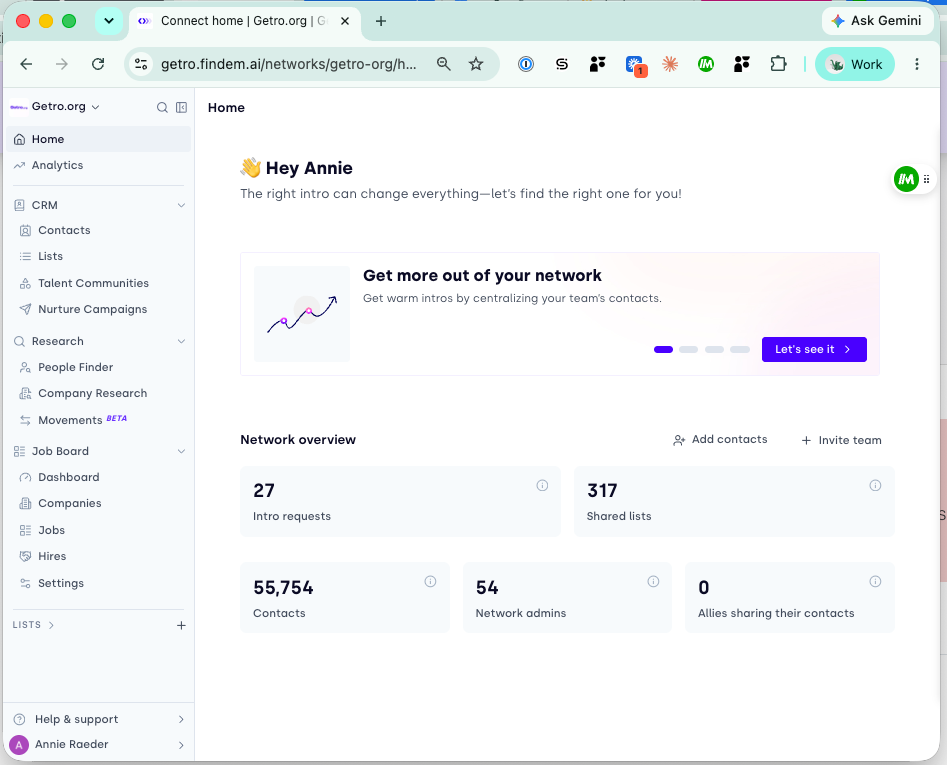
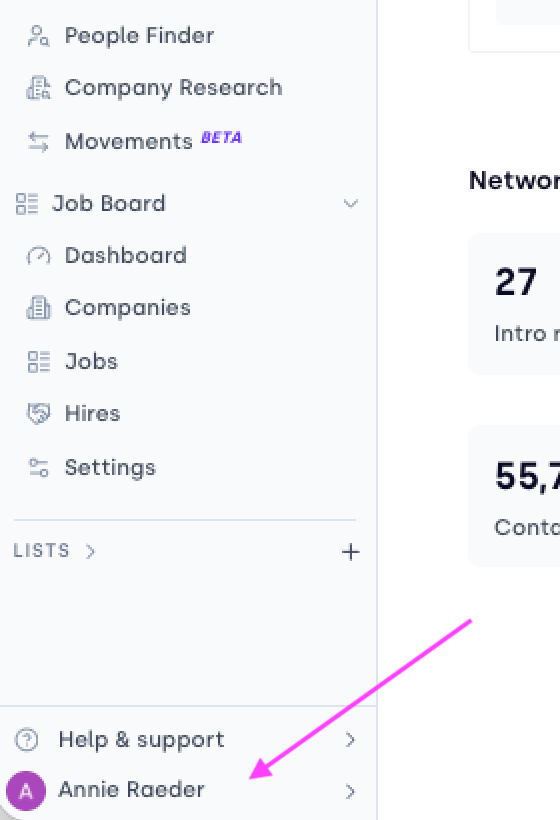
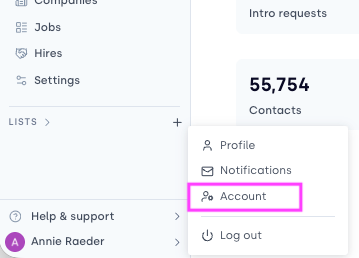
Step 2. Open your account settings
Click your name in the bottom left corner of the screen. This opens your account settings.
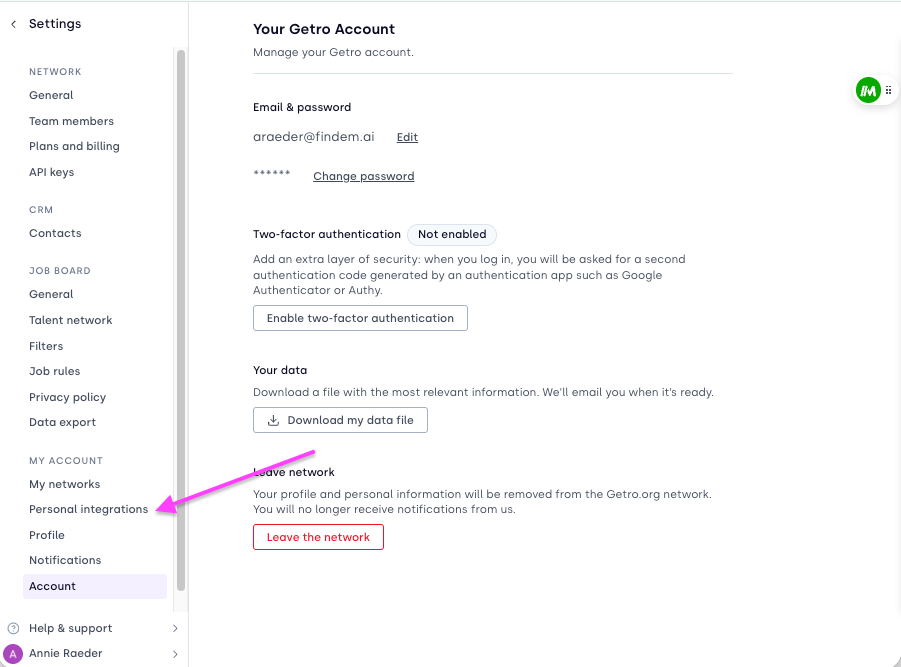
Step 3. Click “Personal integrations”
In the left-hand menu, under My Account, select Personal integrations. This is where you manage your own LinkedIn and Google connections — these are personal to you and separate from any network-wide settings.
Step 4. Find “Google mail and calendar” and click Connect
On the Personal integrations page, you'll see a card for Google mail and calendar with a short description: “Sync your Google contacts, emails, and calendar events to keep your network up to date. Choose what information to share and with whom.” Click the Connect button on the right of the block.
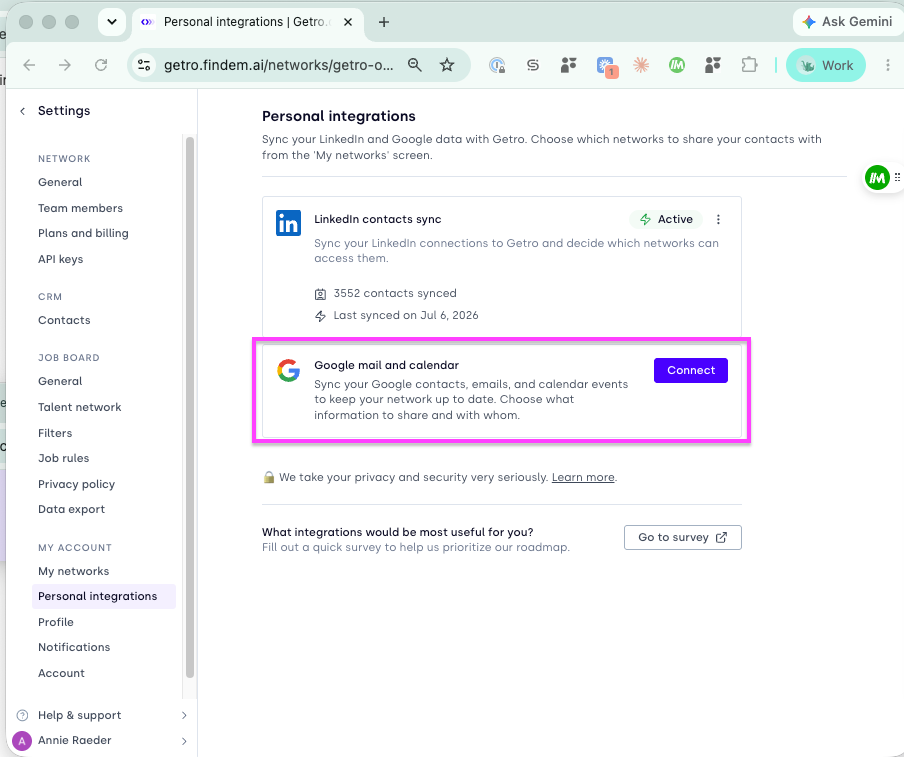
Step 5. Choose what you want to sync
A dialog box opens with two options. Leave both checked for the full experience, or turn either one off:
Relationship strength enrichment — uses your email and calendar metadata to rate how well you know each contact. Getro reads participants and timestamps only; it never stores email bodies or event descriptions.
Contacts sync — automatically keeps contacts you email and meet with up to date in Getro. Only the contacts you select are synced.
If you want to keep certain people or domains out of your sync (for example, personal contacts or a specific company), click “Add exclusions” and enter the emails and/or domains to exclude before continuing. This is the only point where exclusions can be set — see the Managing your connection section below for how to change them later.
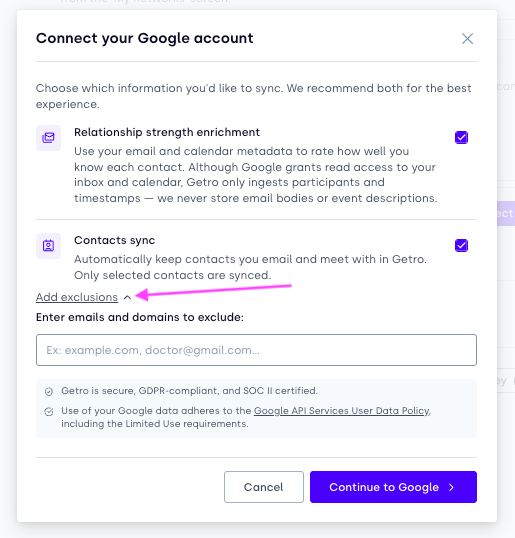
When you're ready, click Continue to Google.
Step 6. Choose your Google account
Google's account chooser appears. Select the Google account you want to connect (typically your work email).
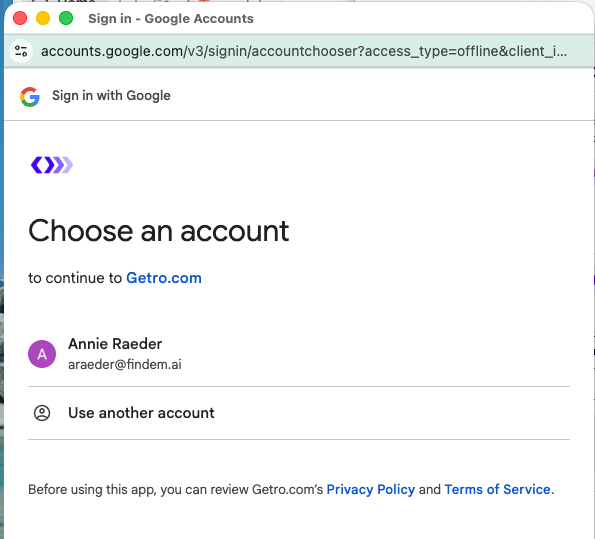
Step 7. If you see “Google hasn't verified this app” — click Advanced
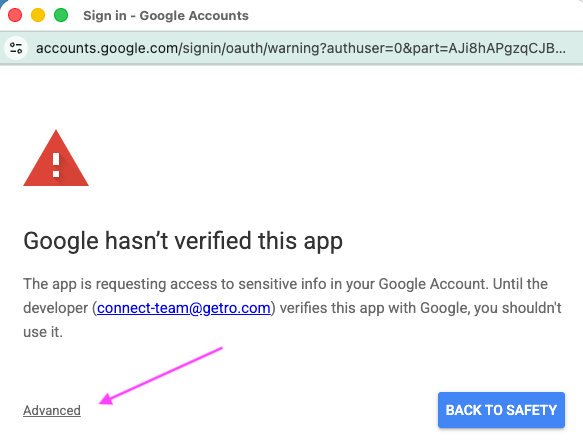
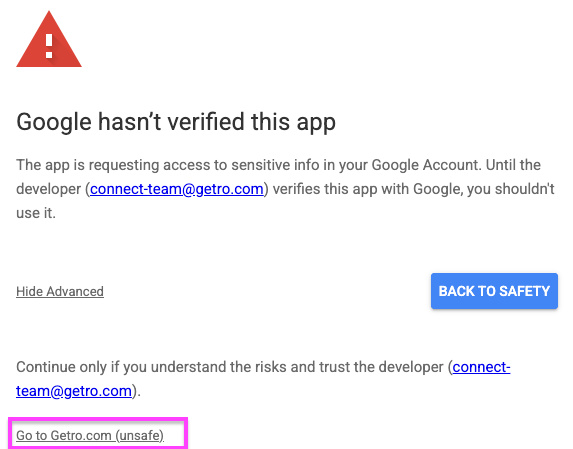
Step 8. Next, click “Go to Getro.com (unsafe)”
This label is Google's standard wording for any unverified app and does not mean the connection is actually unsafe. Click it to continue to the Getro consent flow.
This label is Google's standard wording for any unverified app and does not mean the connection is actually unsafe. Click it to continue to the Getro consent flow.
Step 9. Review Getro's privacy policy and terms, then click Continue
Google shows a summary linking to Getro's Privacy Policy and Terms of Service. Review if you'd like, then click Continue.
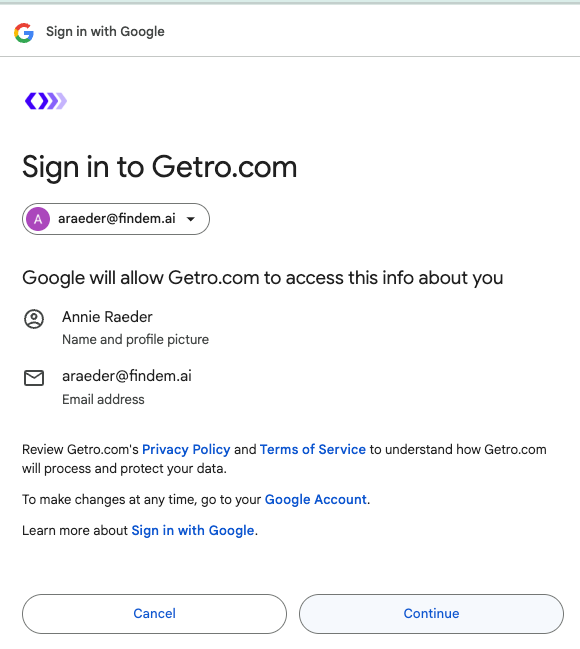
Step 11. Select what Getro can access, then click Continue
Google lists the specific permissions Getro is requesting, based on what you chose in Step 6 — for example, calendar access and Gmail message metadata (labels and headers, never the email body).
First you will see the boxes empty, you should click “Select all” or check each item individually, then click Continue.
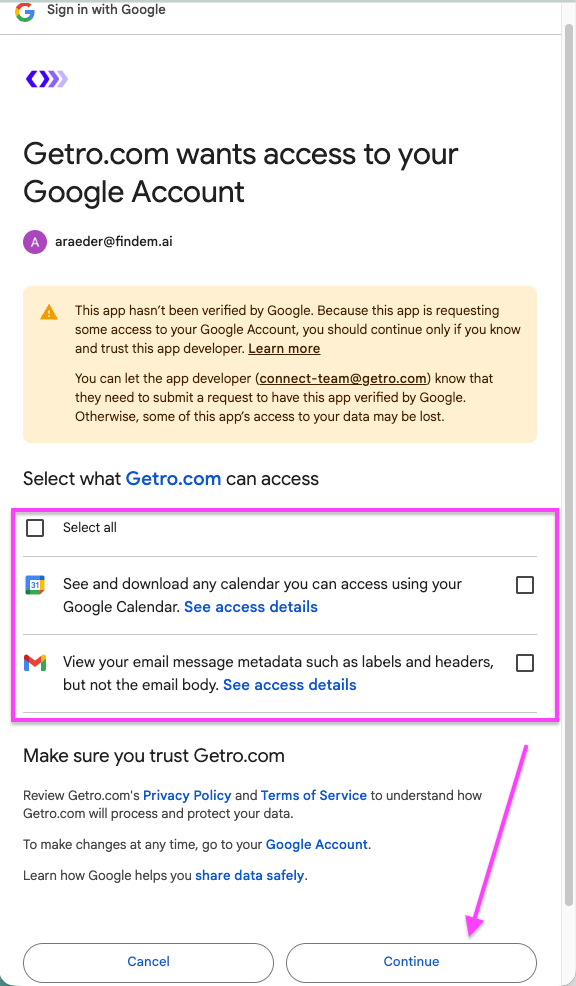
Step 12. Click “Continue” on the final confirmation screen
This is Google's standard “Make sure you trust Getro.com” confirmation. Click Continue to finish.
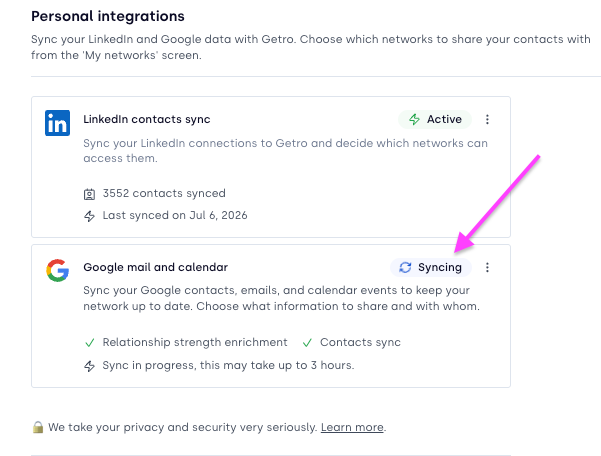
Managing your connection
Changing your sync settings or exclusions
There's currently no in-place way to edit your sync settings once connected. To change what's shared (for example, to add an exclusion or turn off Contacts sync), disconnect the integration from Personal integrations and reconnect using the steps above with your new preferences.
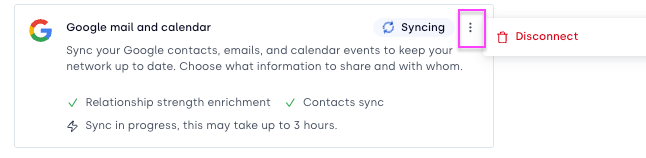
Disconnecting
You can disconnect Google mail and calendar at any time from Personal integrations. Disconnecting stops the sync and deletes the interaction data Getro collected from your mailbox and calendar for relationship strength purposes.
Who should connect
Relationship Strength and Reachability get more accurate as more of your team connects their accounts — each connected teammate adds another data point about who your network really knows. Encourage every admin and ally on your team to complete this setup.
Frequently asked questions
Does Getro read the content of my emails or calendar events?
No. Getro only ever reads metadata — sender, recipient, date, and subject/attendee list. It cannot access, read email bodies, or attachments, and does not store calendar event descriptions. This is enforced by the permission scopes Google grants, not just by Getro's own policy.
Why does Google say the app “hasn't been verified”?
Getro's Google integration is in the process of completing Google's app verification review, which is a standard process for any third-party app requesting sensitive scopes. Until that review completes, Google shows this cautionary screen to all users. It's safe to proceed as described in Steps 8–9.
Can I connect Outlook or Microsoft 365 instead?
Not yet — Google Workspace is the only supported provider today. Check with your Getro contact for the latest timeline on any other providers.
How long does the first sync take?
Up to a few hours, depending on the size of your mailbox and calendar history. You'll receive an email once it's complete.
What if I don't see this option under Personal integrations?
Relationship Strength is currently in beta and enabled network-by-network. Ask your Getro network admin or your Getro Customer Success contact to confirm the feature has been turned on for your network.
Questions? Reach out to your Getro Customer Success contact, or email help@getro.com.